Every organizer has a 7 a.m. message they meant to send. The "doors open in an hour" reminder, the "polls close at 8, have you voted?" nudge, the thank-you after a long day of canvassing. Until now you either set an alarm, sent it the night before and hoped it didn't get buried, or paid for a tool that sends it for you.
WhatsApp is now doing this itself. WABetaInfo reported on 25 November that scheduled messages are rolling out on Android and iOS, and WhatsApp announced it the same day on its own blog, calling it one of its most requested features.
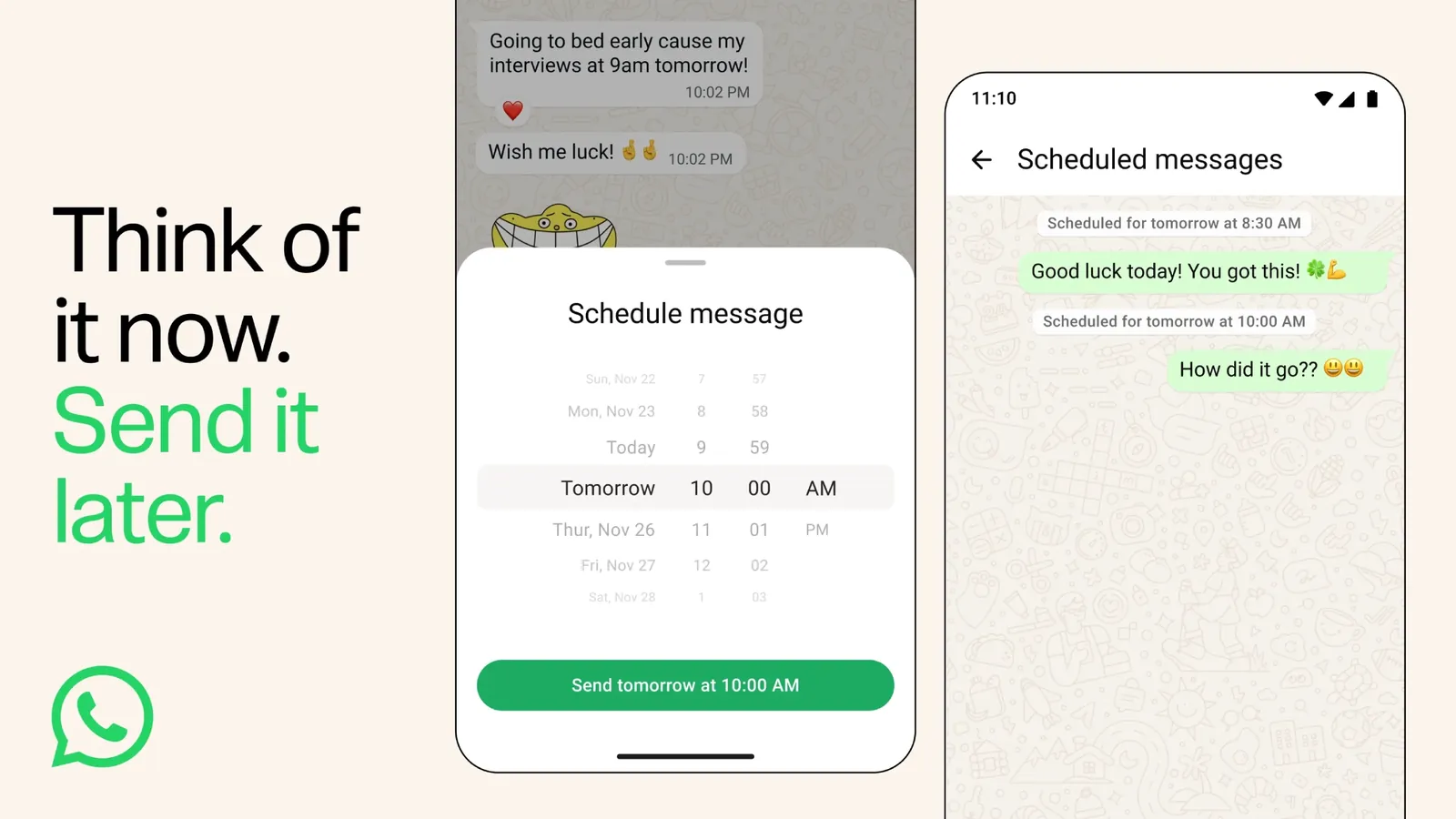
How it works
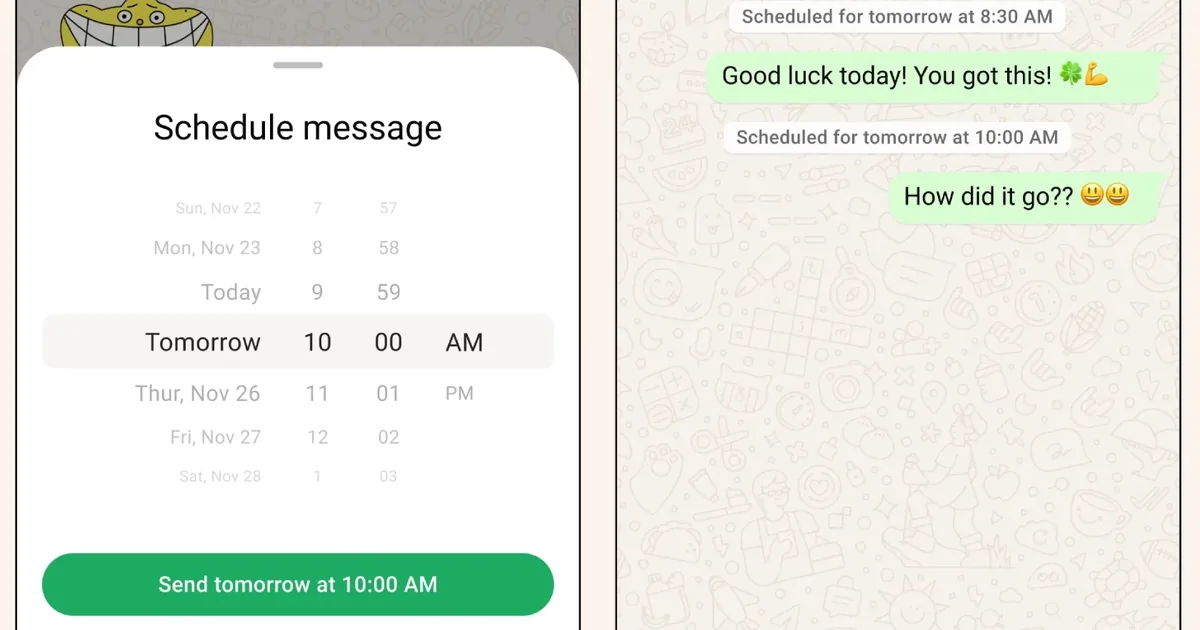
You write the message as usual, or pick a photo or video. Then, instead of tapping send, you press and hold the send button. A date and time picker opens, you choose when it should arrive, and confirm. The message waits until then.
A few rules, from WhatsApp and WABetaInfo:
- The earliest you can schedule is 10 minutes from now, and the latest is 14 days ahead.
- It works with text, photos and videos (WABetaInfo adds links, which are text anyway).
- It works in one-to-one chats and in groups.
- The person who gets it sees a normal message. Nothing tells them it was scheduled.
- Your phone doesn't need to be on. WhatsApp says the message still arrives at the chosen time if your phone is switched off or out of battery, and that it stays end-to-end encrypted.
- You can see everything you have queued in a chat (WABetaInfo says it's in that chat's info screen) and delete a message before it goes out. Deleting it doesn't notify the other person.
The rollout is global but gradual, "over the coming weeks". If you don't see anything when you hold the send button, keep the app updated and try again later.
The group rule to know about
If you run groups, this is the detail to remember. According to WABetaInfo, a scheduled message in a group goes only to the people who were members when you scheduled it. Anyone who joins between then and the send time won't get it.
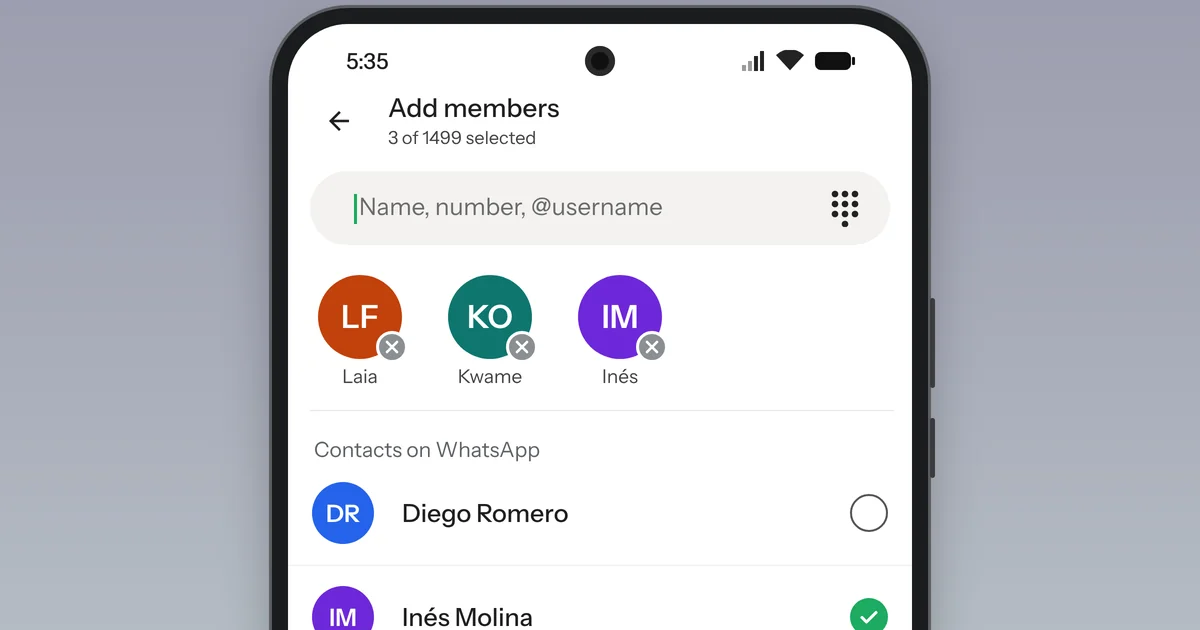
For a family group that changes nothing. For a campaign group that adds 200 people in the week before a demo, it's a problem. If you schedule the "meeting point and time" message on Monday for Saturday morning, everyone who joined on Wednesday misses it. Now that groups can hold 1,500 people, that can be a lot of people.
In a group that's still growing, schedule the message close to the send time. If you queued it early, delete it and schedule it again once the new people are in.
Four ways to use it if you organize people
1. Reminders at the hour people actually read them
The message that works is the one people see when they can act on it. Write the reminder while you're planning, and set it for the morning of the event:
Today at 11:00, we meet at the fountains in Plaça de Catalunya. Legal support line: +34 600 000 000. See you there.
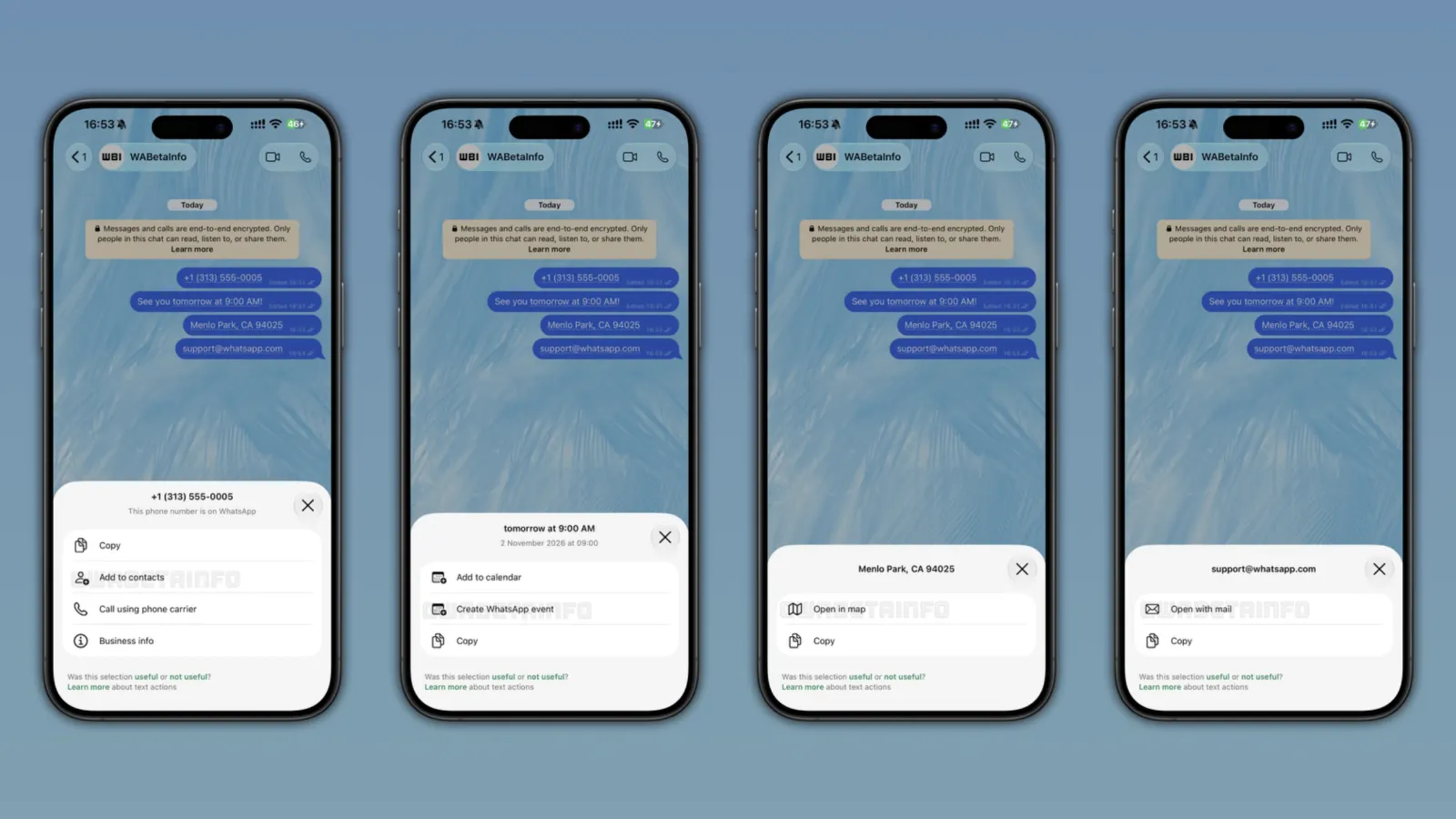
Write the full date or time, the address and the phone number with its country code, and WhatsApp's new one-tap text actions let people add the event to their calendar, open the map or save the number straight from your message.
2. Election day, without setting six alarms
On polling day, you have a dozen things to send at fixed times: polls open, a midday nudge, "one hour left", a thank-you. You can write them all the night before and schedule each one. Keep the 14-day window in mind: a reminder for a vote three weeks away will have to wait.
3. Personal follow-ups after an event
The bigger use, for us, is the one-to-one follow-up. After a meeting, you want each new volunteer to get a personal thank-you the next morning, with their next shift in it. Our bulk link generator already writes a personal message for each contact and gives you a wa.me link that opens the chat with that text in the box. Open each link, and instead of tapping send, hold it and pick tomorrow at 9:00. The link only fills in the text, so scheduling should work the same as for a message you typed. You still go person by person, but the messages land at a sensible hour rather than at midnight when you finished the spreadsheet.
4. Time zones
If your network spans countries, like a diaspora group or a European campaign, you can write a message at a time that suits you and have it arrive at one that suits them.
What it doesn't do
Neither WhatsApp nor WABetaInfo says anything about channels, Community announcement groups, WhatsApp Web, the desktop apps or the WhatsApp Business app. There's no word on editing a scheduled message, only on deleting it, so if you spot a typo, delete it and schedule it again.
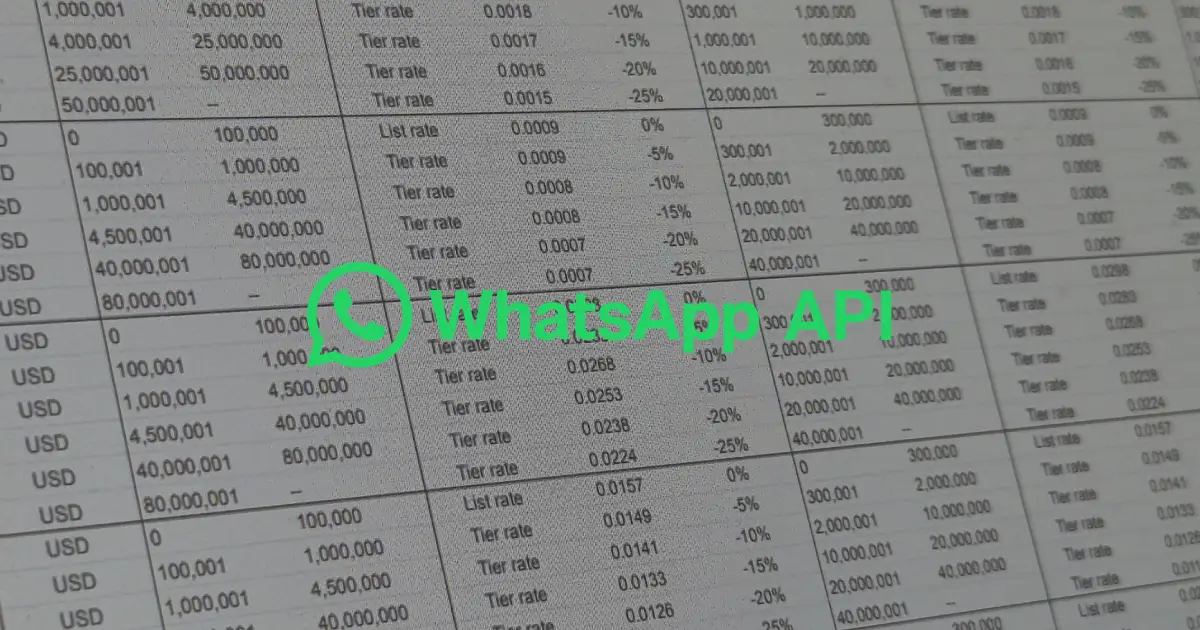
It also doesn't make WhatsApp a mass-sending tool. It's one message, in one chat, scheduled by hand. It doesn't repeat, and it doesn't go out to a list. If you need to reach thousands of people on a schedule, look at the official API and the tools built on it: our comparison of the ways to message many people on WhatsApp sets out the options, and the automation section covers the platforms that send on a schedule.
What I'd do this week
- Hold the send button in any chat and see whether you have it yet.
- Try it in a small group first, so you've seen exactly what members get before you rely on it.
- For your next event, write the reminders on the day you plan it and schedule them for the morning of.
- In a group that's still growing, schedule the key message no more than a day ahead.