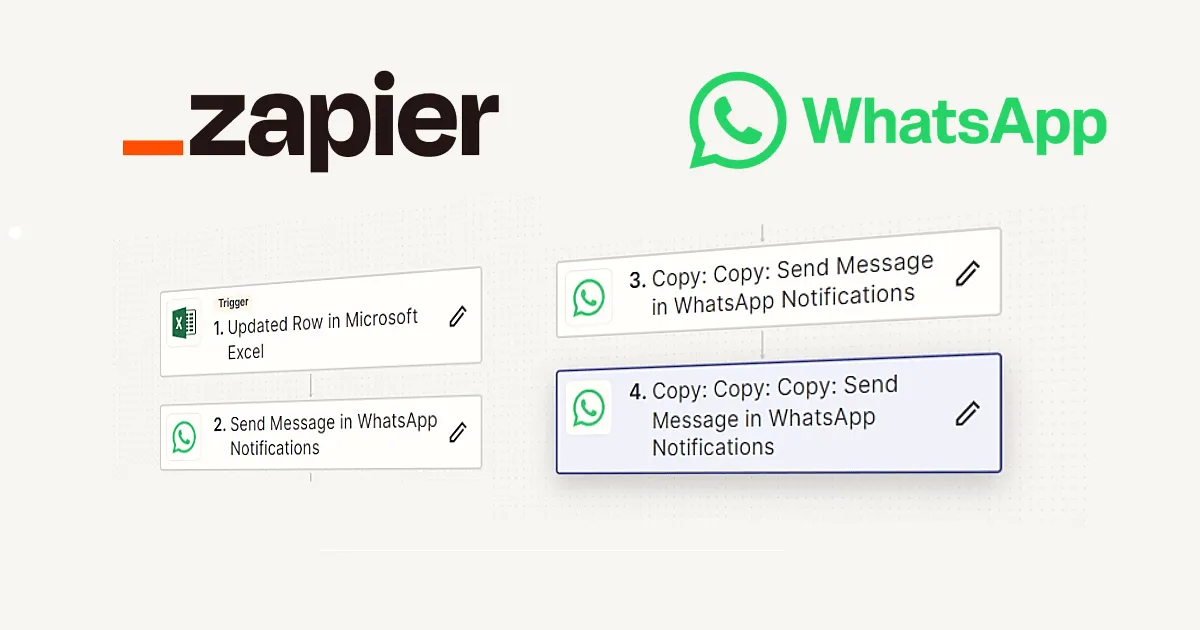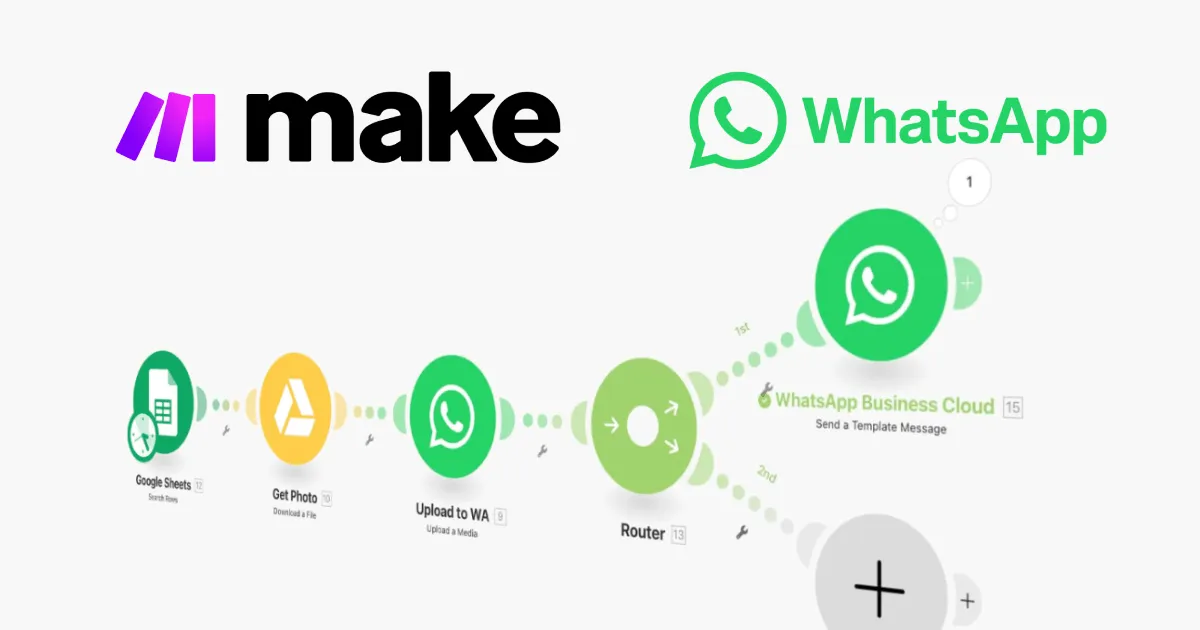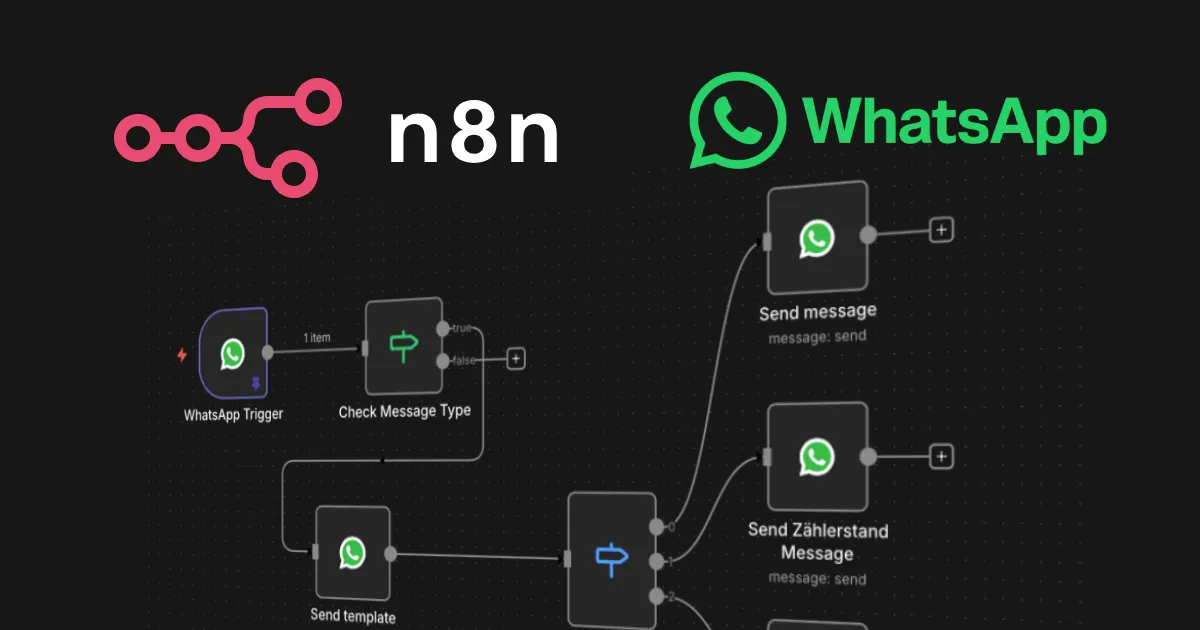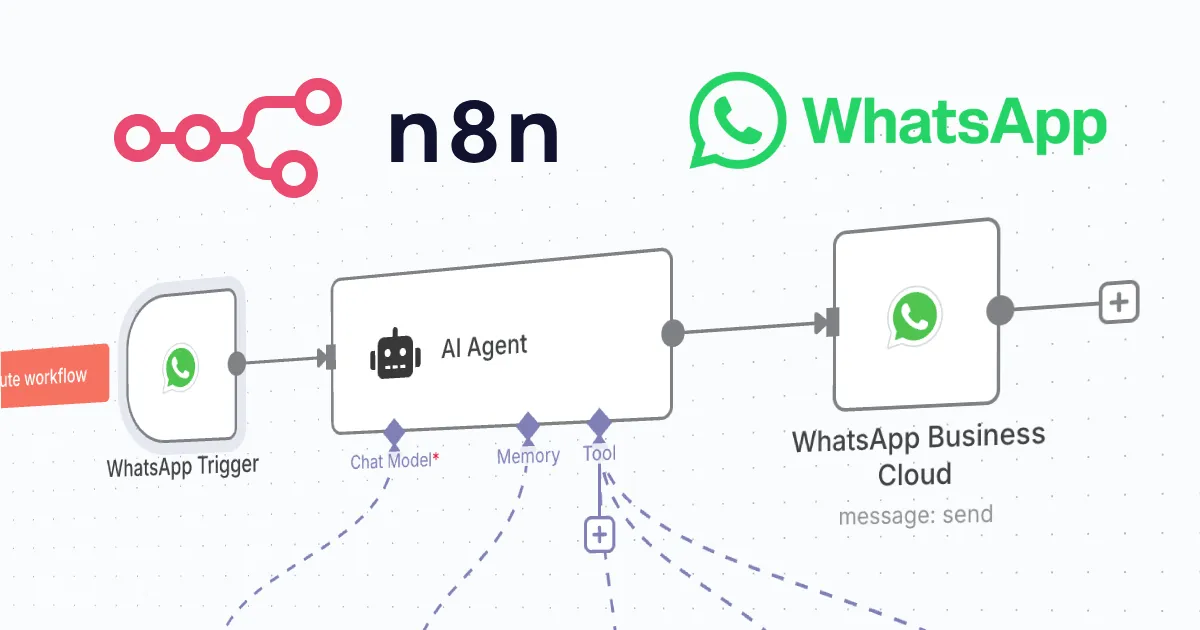
n8n is a workflow-automation tool you can self-host, and it ships with native WhatsApp nodes for Meta’s official WhatsApp Business Cloud API. If your organisation qualifies for the official API, this is the compliant, ban-safe way to send notifications and build a chatbot, no unofficial gateway required. This guide focuses on that official path; if you can’t use the official API, see our companion guide on unofficial APIs with n8n. Prefer a fully hosted tool with nothing to run yourself? The same official-API workflow is possible with Zapier or Make.
The two native nodes
- WhatsApp Business Cloud node, sends messages: template messages to start conversations, and free-form text/media replies inside an open session.
- WhatsApp Trigger node, fires your workflow when a message or status update arrives via a Meta webhook, so you can respond automatically.
What you need first
Because this is the official API, there is real setup: a Meta Business account, a WhatsApp Business Cloud app in the Meta for Developers dashboard, a phone number for the API, and access credentials (an access token and phone number ID). This is also where eligibility matters, Meta restricts some uses, and political/electoral messaging in particular is frequently not permitted. We cover that in How can a Political Party use WhatsApp Business API?.
Step 1: Connect n8n to the Cloud API
In n8n, create WhatsApp credentials with your access token and phone number ID from the Meta dashboard. Add a WhatsApp Business Cloud node to a workflow and select your number, you are now ready to send.
Step 2: Send a template message
The official API only lets you start a conversation with a pre-approved template (for utility, authentication or marketing messages). In the WhatsApp Business Cloud node choose “Send Template”, pick your approved template, and map any variables (like a name or order number) from earlier steps in the workflow. This is how you send reminders, confirmations and opt-in broadcasts compliantly.
Step 3: Reply within the 24-hour window
Once a user messages you, a 24-hour customer service window opens during which you can send free-form (non-template) messages. Use the WhatsApp Trigger to catch the inbound message, then a WhatsApp Business Cloud “Send Message” node to reply with plain text or media, no template needed while the window is open.
Step 4: Build a simple chatbot
- Add a WhatsApp Trigger and connect Meta’s webhook to it.
- Branch on the message text with an IF or Switch node, or pass it to an AI node to understand intent.
- Look up any data you need (a database, CRM or Google Sheet).
- Reply with a WhatsApp Business Cloud node, and hand off to a human for anything the bot can’t handle.
Official vs unofficial: which path?
Use the official Cloud API with n8n when you qualify and need compliant, scalable messaging, it won’t get your number banned and it supports templates and opt-in broadcasts. If Meta won’t onboard you, or you only need a small personal automation, an unofficial API like Evolution API is the alternative, with the caveats we describe there. For a fully managed official-API experience without building it yourself, see Wati.
Frequently asked questions
Does n8n have a built-in WhatsApp node?
Yes. n8n includes a native WhatsApp Business Cloud node for sending messages and a WhatsApp Trigger node for receiving them, both using Meta’s official Cloud API.
Why do I need message templates?
The official API requires a pre-approved template to start a conversation. After the user replies, a 24-hour window opens in which you can send free-form messages without a template.
Is the official API free?
n8n itself is free to self-host, but Meta charges for the WhatsApp Business API on a per-conversation basis. Check Meta’s current pricing for your region and use case.