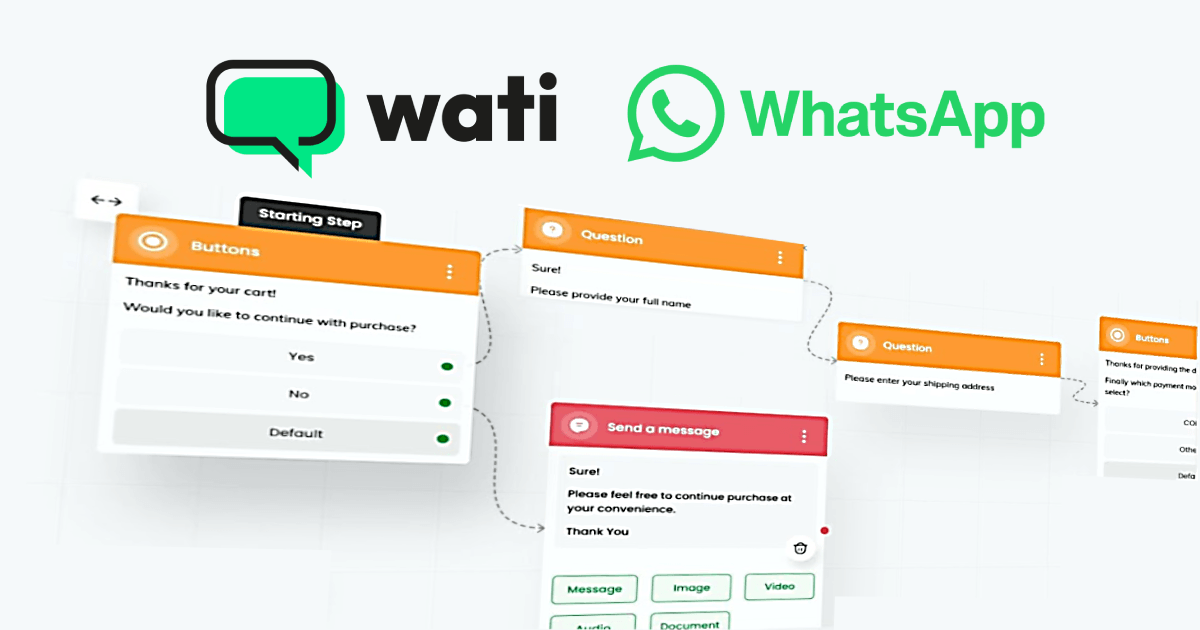
Wati is a provider of the official WhatsApp Business API, and it’s the compliant way to send bulk WhatsApp messages, broadcasts to a list of people who have opted in, using pre-approved templates. This guide goes deeper than our Wati overview into how templates, broadcasts and the messaging window actually work, so your number stays in good standing.
Why not just blast from my phone?
Because that’s how numbers get banned. WhatsApp is built to stop spam: sending unsolicited bulk messages from a personal number (or an unofficial gateway) invites blocks. The official API takes a different approach: consent + templates. Done right, you can reach large lists reliably.
Step 1: Build an opt-in list
You may only message people who have agreed to hear from you. Collect opt-ins with a click-to-chat link, a website form, or a checkbox at signup, and keep a record of that consent. Import these contacts into Wati.
Step 2: Understand message templates
To start a conversation (a broadcast), the official API requires a pre-approved template. Templates fall into categories, utility (order/appointment updates), authentication (one-time codes) and marketing (promotions), and Meta reviews each one. Write clear templates with variables (like {{name}} or an order number) that Wati fills per recipient. WhatsApp is also testing an ‘Offers & Updates’ folder that moves messages from large businesses out of the main chat list, which would change where marketing templates end up.
Step 3: Send a broadcast
- Pick your approved template and the opt-in list to send to.
- Map the template variables to your contact fields so each message is personalised.
- Schedule or send, then monitor delivery and read status from Wati’s dashboard.
- Handle replies from the shared team inbox, where several people can respond from the one number.
Step 4: The 24-hour window
When someone replies to your broadcast, a 24-hour customer service window opens. During it you can send free-form (non-template) messages, perfect for real conversations and support. After 24 hours of silence, you need an approved template again to re-initiate. Understanding this window is the key to keeping costs and compliance in check.
A note on eligibility
The official API isn’t open to everyone. Meta restricts some uses, political and election-related messaging in particular is frequently not allowed, and providers may decline those applications. If that’s you, read How can a Political Party use WhatsApp Business API? and consider Broadcast Lists and the free tools instead.
Frequently asked questions
Can I message people who haven’t opted in?
No. The official API requires opt-in, and messaging people who didn’t consent risks blocks and account issues. Build your list with click-to-chat links, forms or signup checkboxes and keep proof of consent.
What is a message template?
A pre-approved message format (utility, authentication or marketing) required to start a WhatsApp conversation on the official API. Templates can include variables that are personalised per recipient.
How is bulk on the API different from a Broadcast List?
A WhatsApp Broadcast List (in the normal app) only reaches up to 256 people who have saved your number. The official API via Wati reaches large opt-in lists with templates and delivery tracking, without recipients needing to save you first.